 FarryOn
Getting started with FarryOn
From downloading the app to your first conversation with Farry — about five minutes. Every step below has a real screenshot, with the button to press marked in orange.
Before you start
- An Android phone (Android 7 or newer). An iPhone version is not available yet.
- An internet connection (Wi-Fi or mobile data).
- An email address you can open on your phone — or a Google account.
- Smart glasses are not needed to start. You can talk to Farry through the phone and connect glasses later.
1Download the app
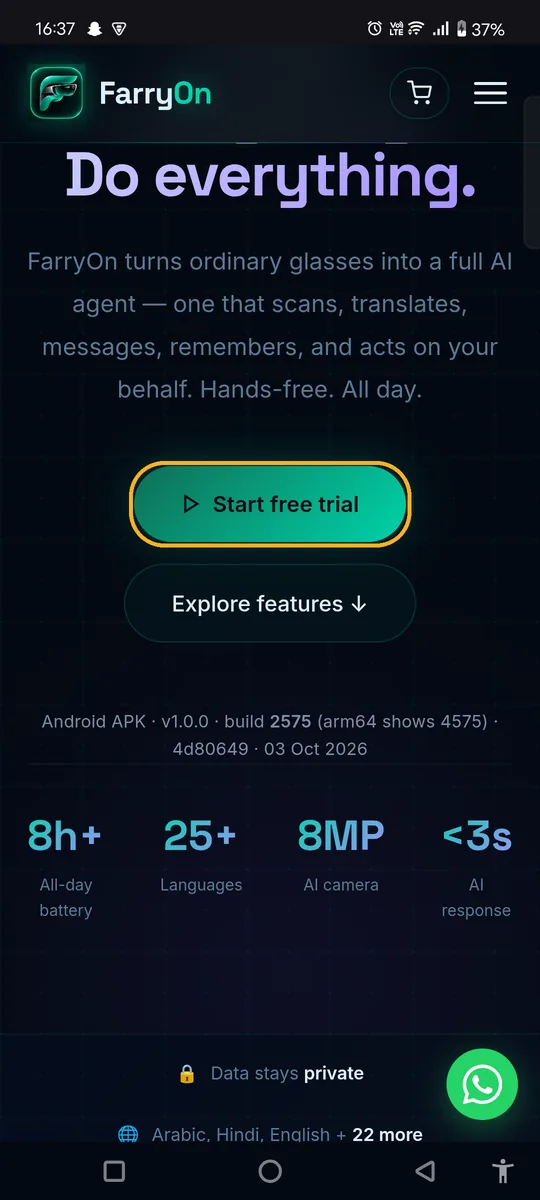
- On your phone, open farryon.izylrn.com in Chrome.
- Tap Try the app free (or Get FarryOn at the top).
The app is downloaded straight from our website as an APK file (about 18 MB). It is not on the Google Play Store yet, so the next two screens show warnings that every app from outside the Play Store gets.
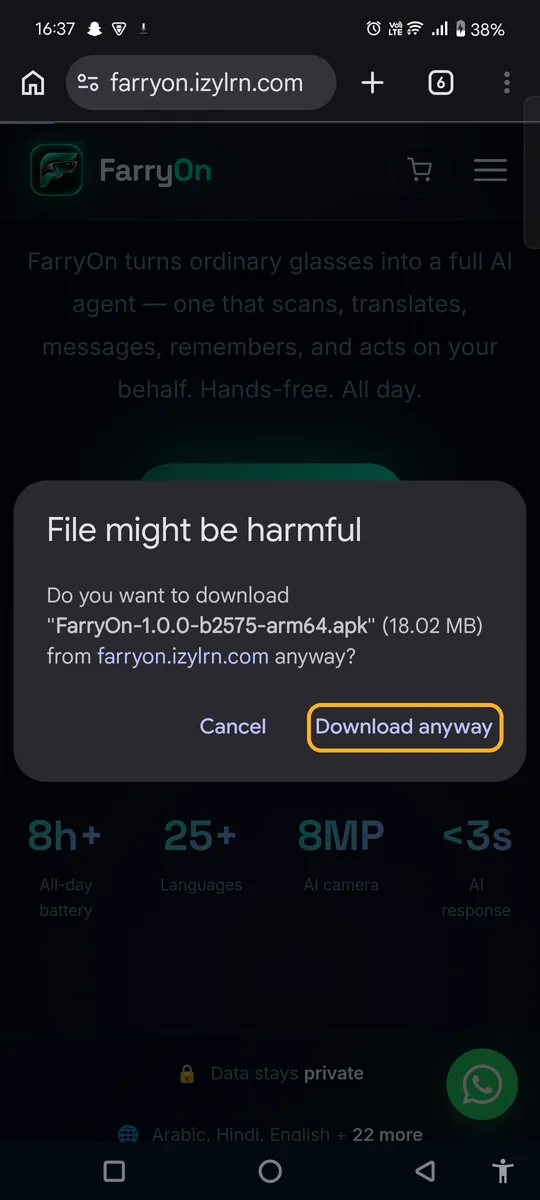
Chrome asks “File might be harmful”. This is Chrome's standard message for any app file. Check that it says FarryOn and farryon.izylrn.com, then tap Download anyway.
When the download finishes, a notification appears. Tap it to open the file:
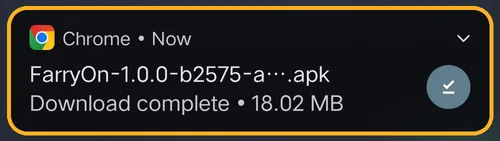
Missed it? Open Chrome's menu ⋮ → Downloads and tap the FarryOn file.
2Install it
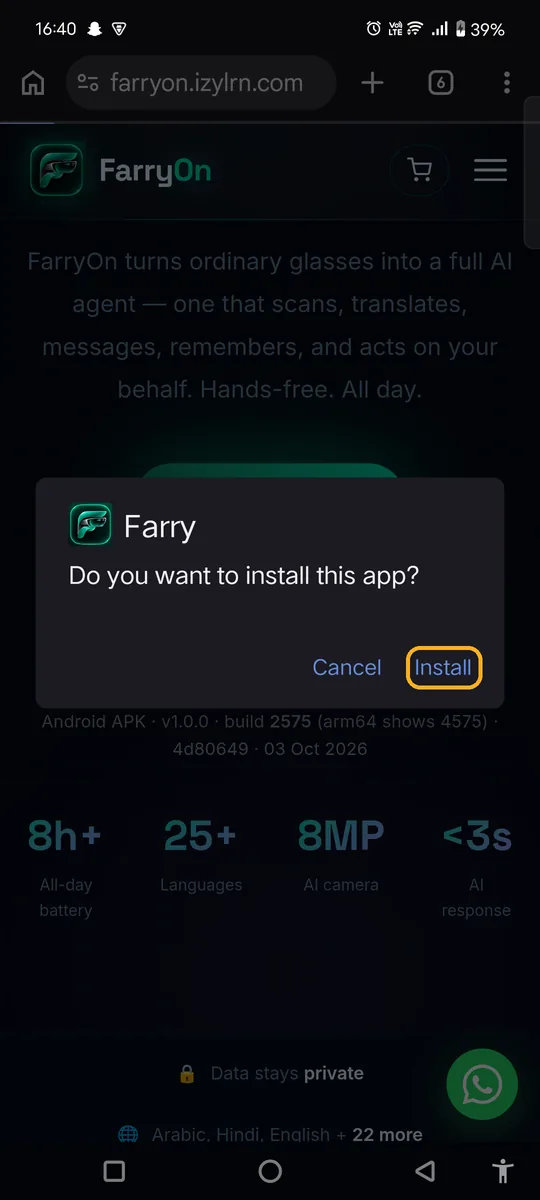
Tap Install.
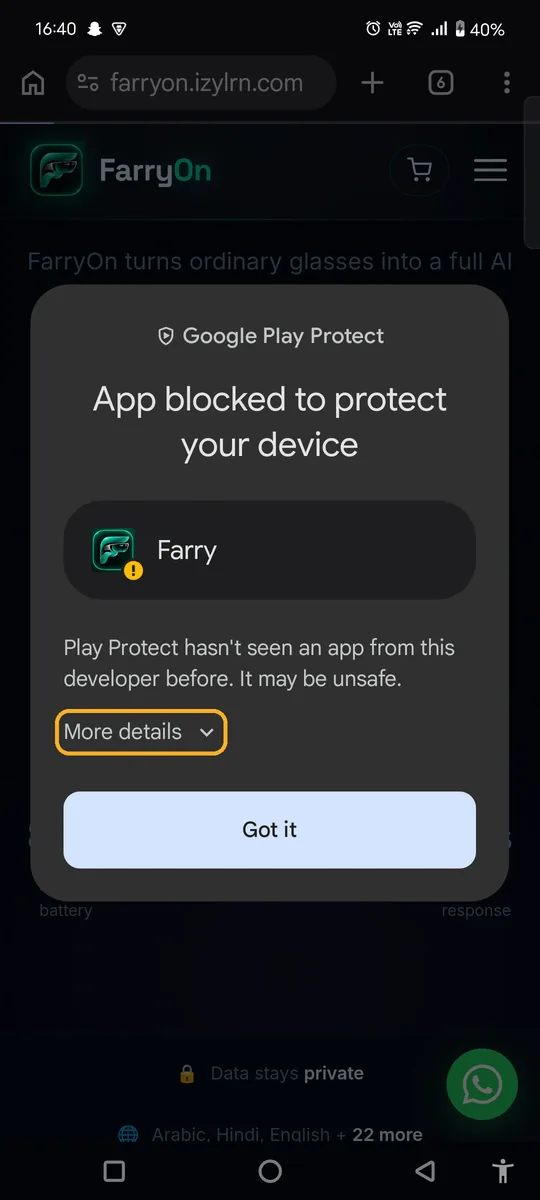
Google Play Protect may say “App blocked to protect your device”. It shows this for apps it hasn't seen before — FarryOn is new and not on the Play Store yet.
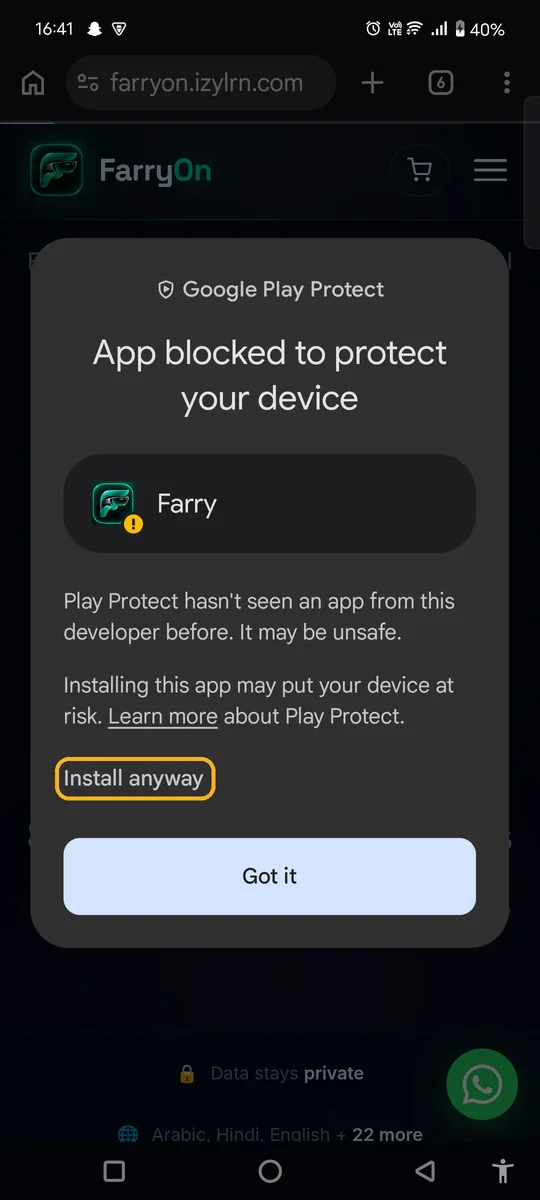
Tap Install anyway.
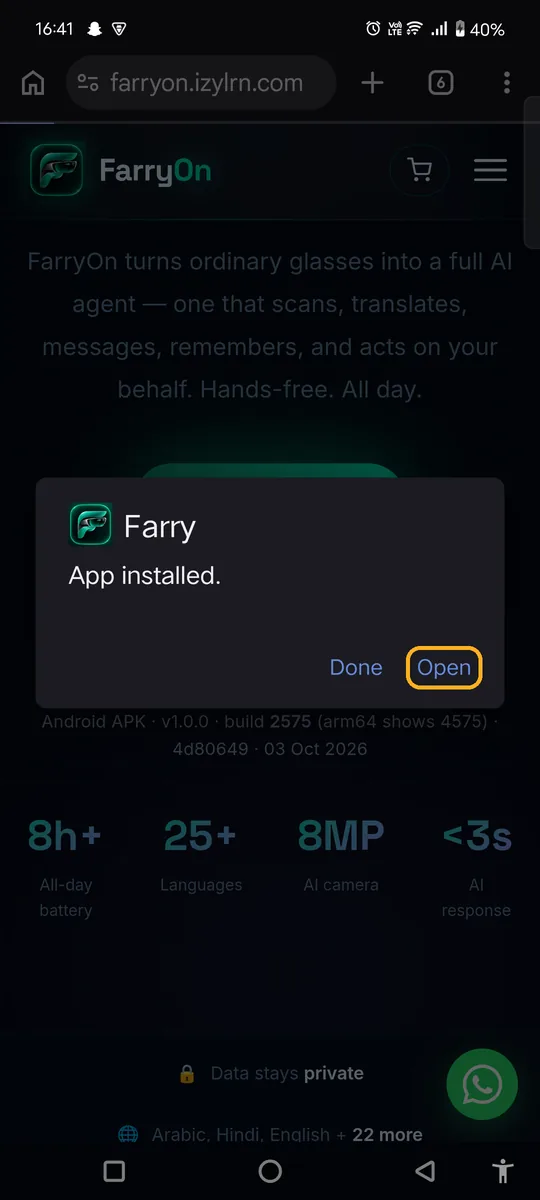
When you see “App installed”, tap Open. From now on you'll find FarryOn on your home screen as Farry.
3Create your account
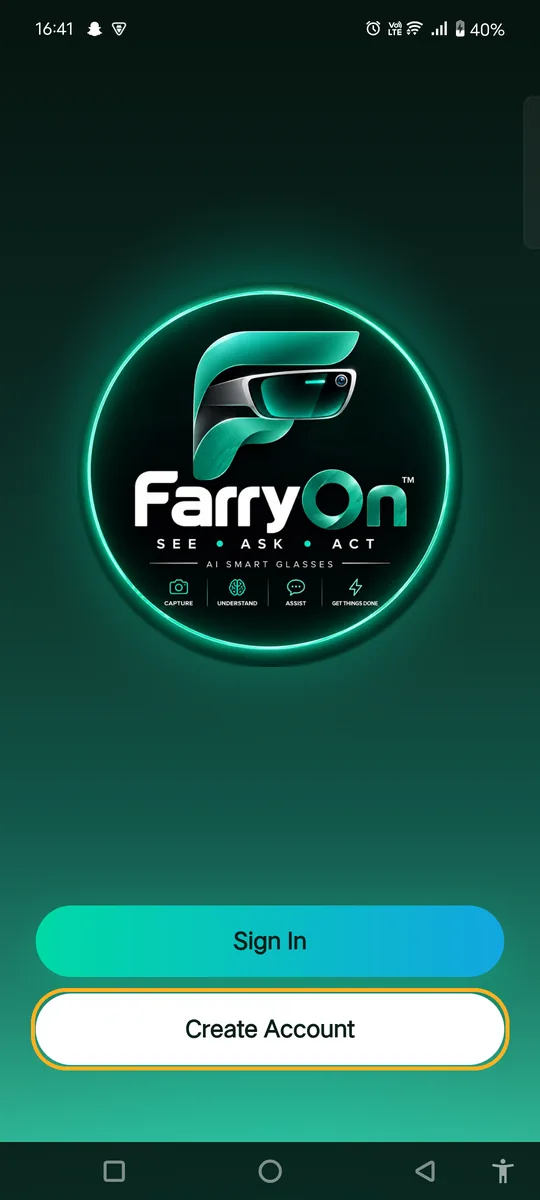
On the welcome screen, tap Create Account.
Already have an account? Tap Sign In and skip to step 5.
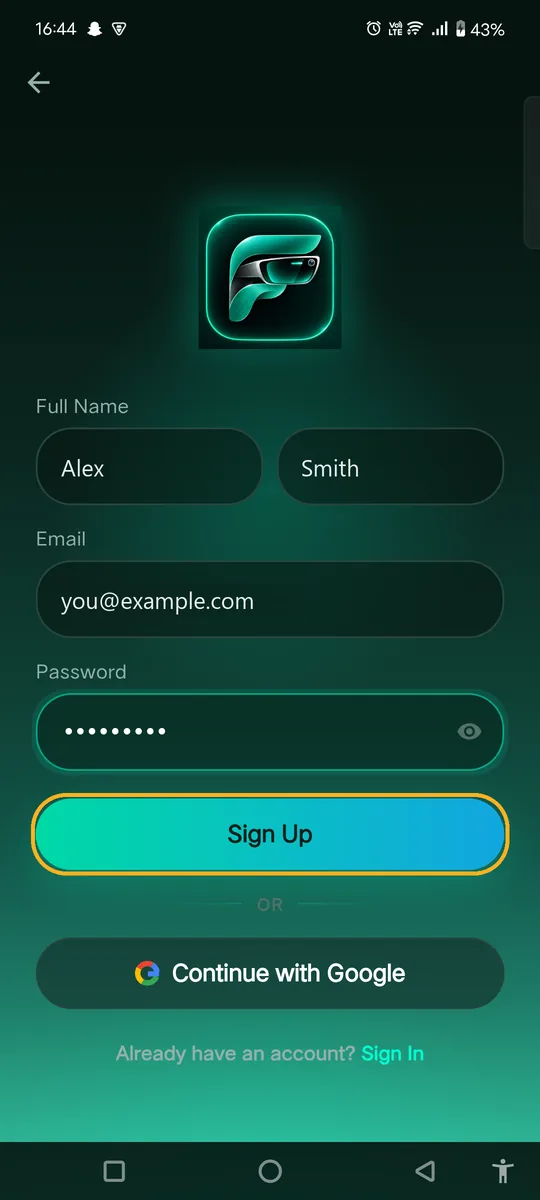
- Enter your first and last name.
- Enter your email — use one you can open, because we'll send a link to it.
- Choose a password of at least 8 characters. Tap the eye icon to check what you typed.
- Tap Sign Up.
The app shows “Account created” and takes you back to the welcome screen. Now check your email.
4Verify your email
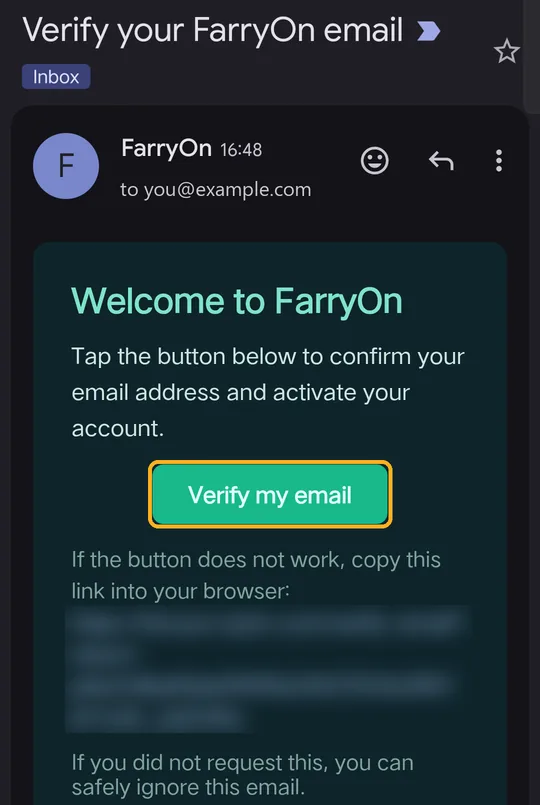
Within a minute you'll get an email from FarryOn: “Verify your FarryOn email”. Open it and tap Verify my email.
You can't sign in until this is done — it makes sure nobody else can open an account with your address.
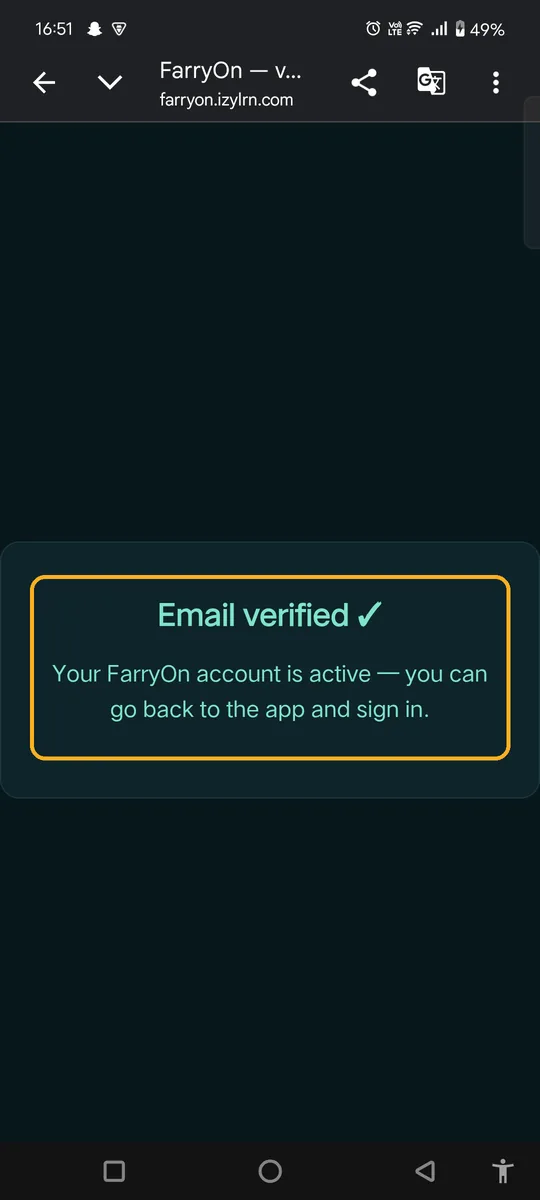
A page opens saying “Email verified ✓”. Your account is active. Go back to the FarryOn app.
5Sign in
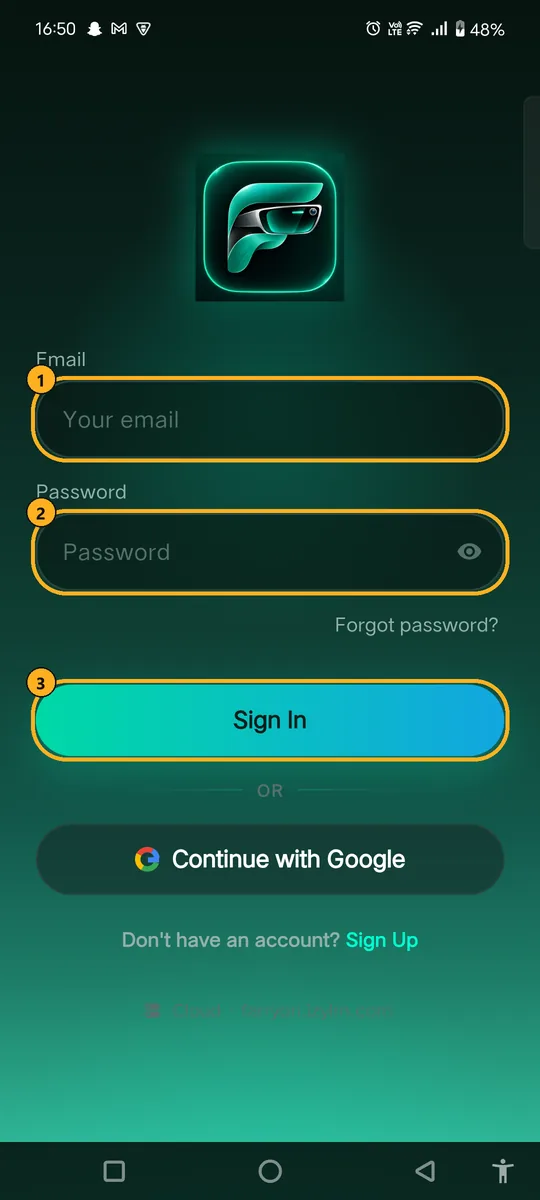
Forgot your password? Type your email in box 1 first, then tap Forgot password? — we'll email you a reset link.
You only sign in once. FarryOn keeps you signed in, even after you restart your phone.
6Allow permissions
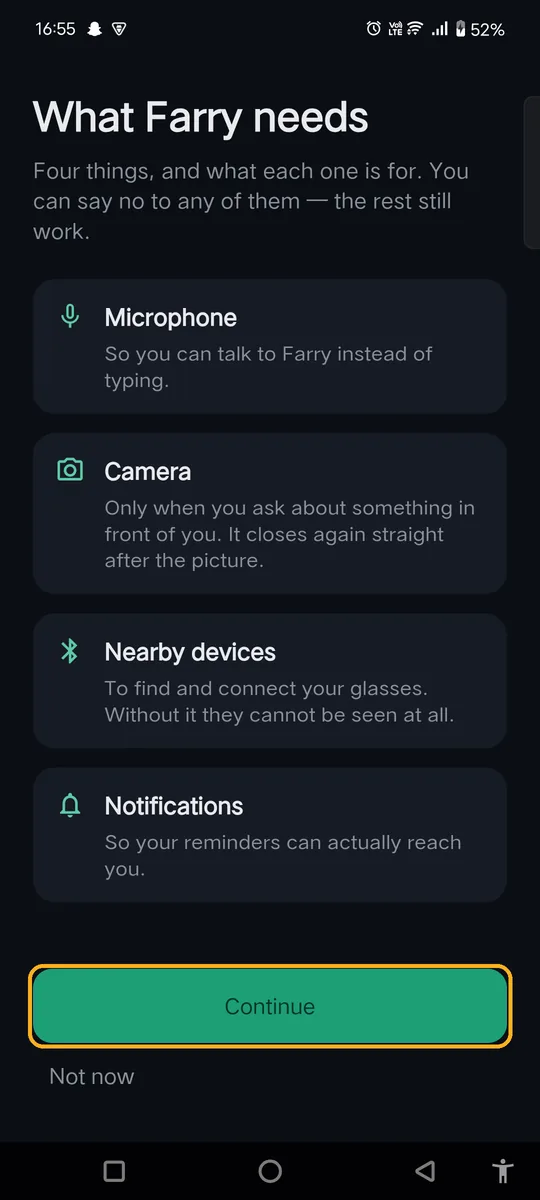
The first time you sign in, FarryOn explains what it needs and why:
| Permission | What it's for |
|---|---|
| Microphone | So you can talk to Farry instead of typing. |
| Camera | Only when you ask about something in front of you. |
| Nearby devices | To find and connect your glasses. |
| Notifications | So your reminders reach you. |
| Location | For answers about where you are — nearby places, weather, directions. |
Tap Continue. Android then asks for each one in turn.
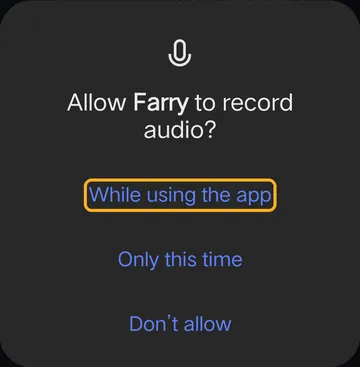
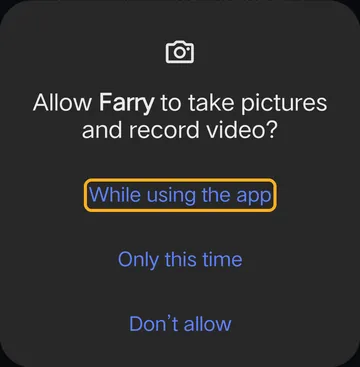
Answer each Android pop-up like this:
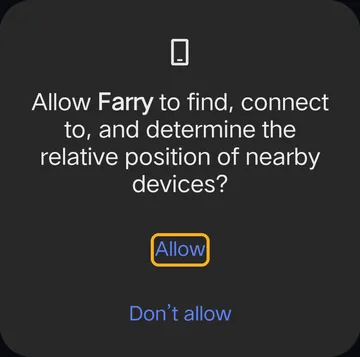
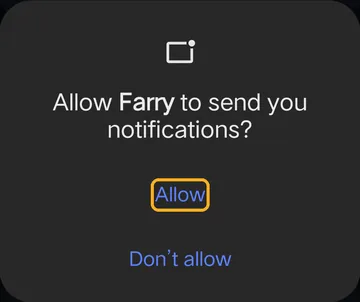
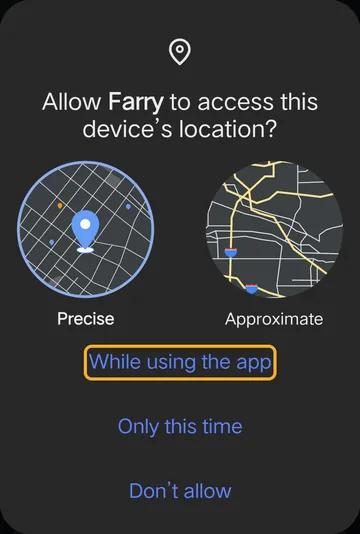
7Your home screen
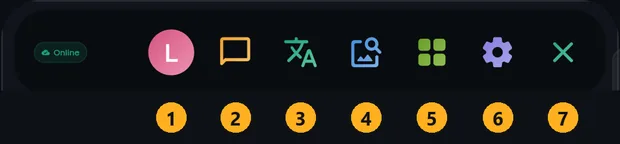
After the permissions, you land on the main screen. Farry is already listening — you can start talking straight away. Here is what everything does:
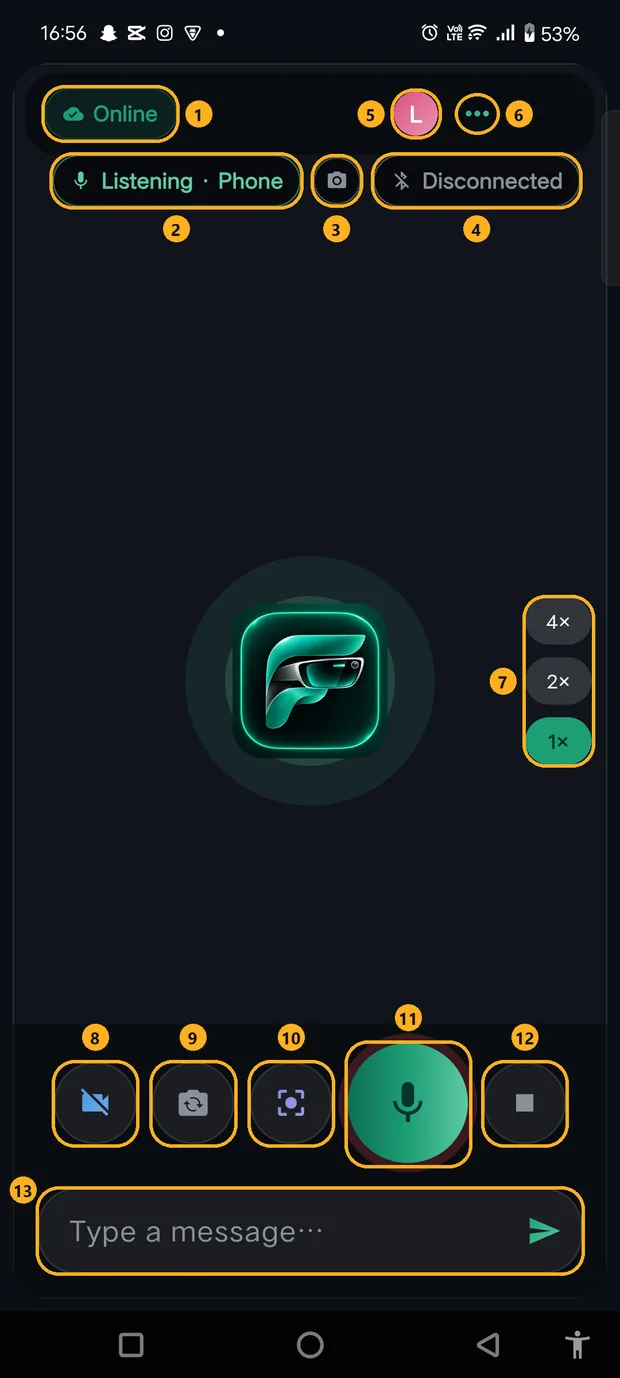
The menu (tap ⋯, number 6 above)
8Talk to Farry
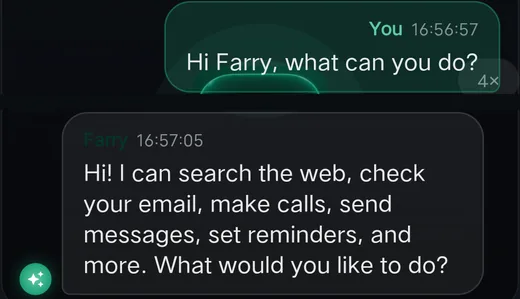
Just speak — for example “Hi Farry, what can you do?” Farry answers out loud. Or type the same thing in the message box and tap the arrow.
To see the conversation written out, open the menu ⋯ and tap the chat icon:
Things to try next
- “Remind me to call Mum at 6 pm.”
- “Make a note: buy milk and eggs.”
- “What's the weather tomorrow?”
- Turn on the camera (8), point it at something and ask “What is this?”
?If something goes wrong
| What you see | What to do |
|---|---|
| “App blocked to protect your device” | Tap More details → Install anyway (step 2). |
| “App not installed” or “conflicts with an existing package” | An older FarryOn is on the phone. Uninstall it first (long-press the Farry icon → Uninstall), then install again. |
| “An account with this email already exists” | You already signed up. Go back and tap Sign In. Forgot the password? Use Forgot password? |
| The verification email never arrived | Check Spam and Promotions. Check the address you typed. Then contact us. |
| “Incorrect email or password” | Use your full email address. Check Caps Lock. Or reset it with Forgot password? |
| “Verify your email first” | Open the email from step 4 and tap Verify my email, then sign in again. |
| The mic chip says Muted | Tap the big mic button (11) once. |
| Farry doesn't hear you | Hold the phone closer. Check that Microphone is allowed (step 6). The chip should say Listening. |
| The top shows Offline | Check your Wi-Fi or mobile data. FarryOn reconnects by itself. |
Still stuck? Message us on WhatsApp — a real person answers.
Sat–Thu, 10:00–19:00 GST