 FarryOn
Live translation
Someone speaks in their language; you read it — and hear it — in yours. You only choose the language you want. FarryOn works out what they're speaking by itself, even when it changes mid-conversation.
Before you start
- Best with glasses on (Part 2): the translation plays in your ears and nothing is missed.
- No glasses? The phone works too — earphones help, or switch on Text only.
- While you translate, Farry stays quiet. She comes back on her own when you leave the translation screen.
1Open live translation
On the home screen, open the menu ⋯ and tap the translate icon:

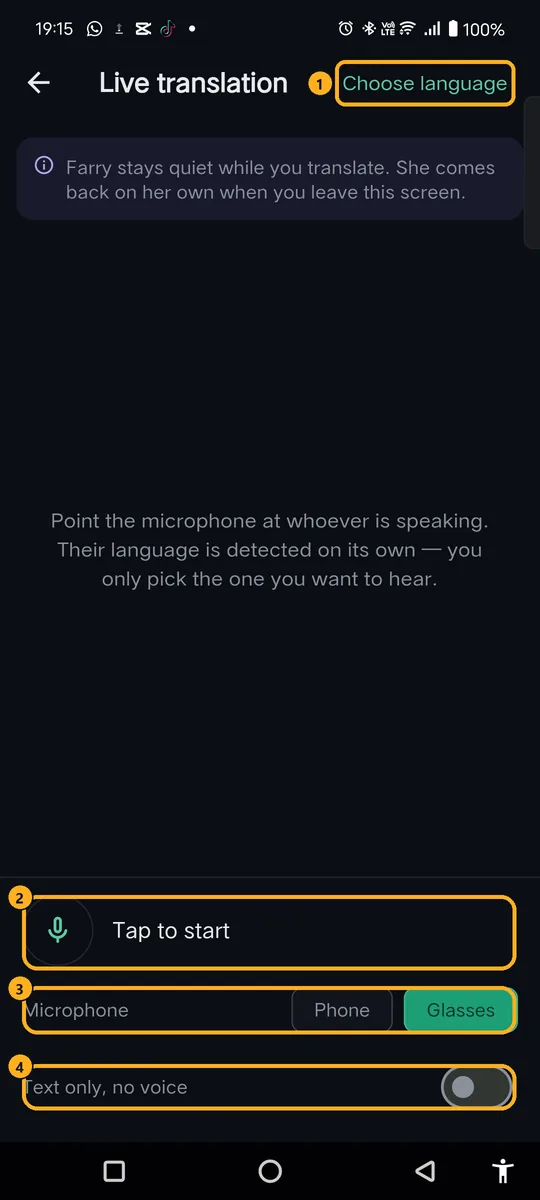
The translation screen:
2Choose your language
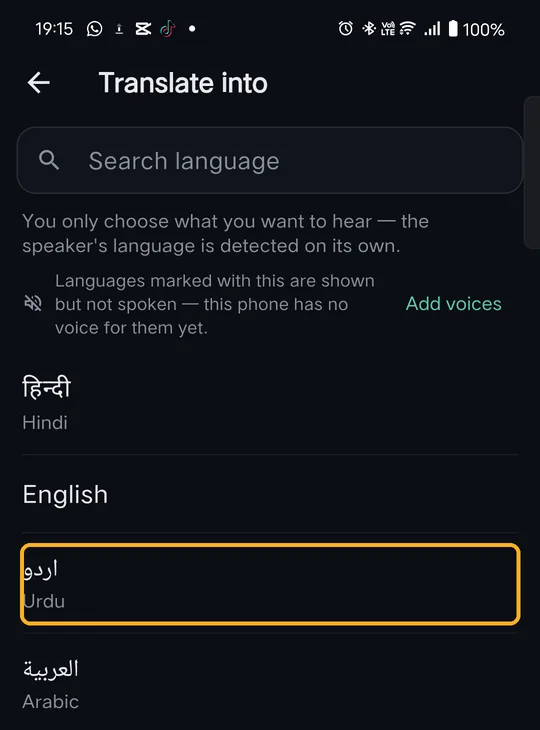
Tap Choose language and pick the language you want — in this example, Urdu. Use the search box to find it quickly.
You don't choose the other person's language. Whatever they speak — English, Arabic, Hindi, Tagalog… — is detected automatically.
Your choice appears at the top right, e.g. → اردو. Tap it to change it any time.
3Start translating
Tap the microphone button. It turns green and counts the time:

Point the microphone at whoever is speaking — with glasses on, just look at them. Each sentence appears as a card. Tap the button again to stop.
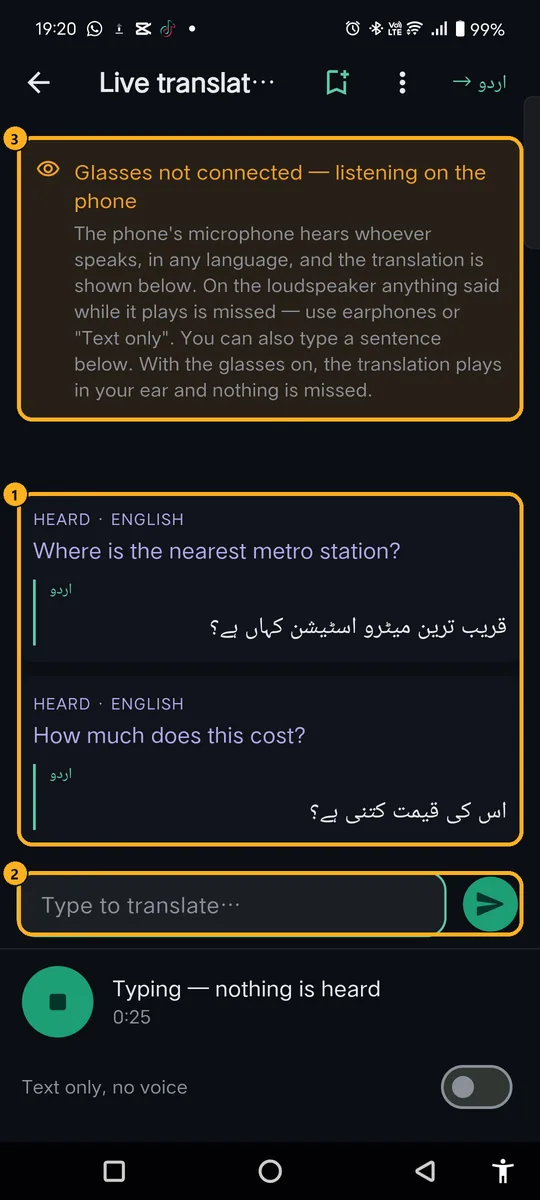
Languages written right-to-left, like Urdu and Arabic, are shown right-to-left.
4Save, share or clear
Once there's at least one card, two buttons appear at the top:



Clear asks first. It only empties this screen — anything you saved stays in your notes.
?If something goes wrong
| What you see | What to do |
|---|---|
| Nothing appears while people talk | Check the button is green (Listening…) and the right Microphone is chosen. Bring the phone closer to the speaker. |
| Some sentences are missing on the phone | On the loudspeaker, speech during a playing translation is missed. Use glasses, earphones, or Text only. |
| The translation isn't read out | Turn Text only off. If the language has a crossed-out speaker icon, tap Add voices. |
| “Live translation needs the microphone.” | Allow the microphone: phone Settings → Apps → Farry → Permissions. |
| “Reconnecting…” | Your internet dropped. It continues on its own; what you already have is kept. |
| Farry doesn't answer | She's quiet while translation is open. Go back to the home screen. |
Still stuck? Message us on WhatsApp — a real person answers.
Sat–Thu, 10:00–19:00 GST